.svg)
Your Assets list is where you spend a lot of your day, so we rebuilt it to work the way you want to. You can now reshape the table to fit how you work - and it remembers every choice, on every device you sign in from.
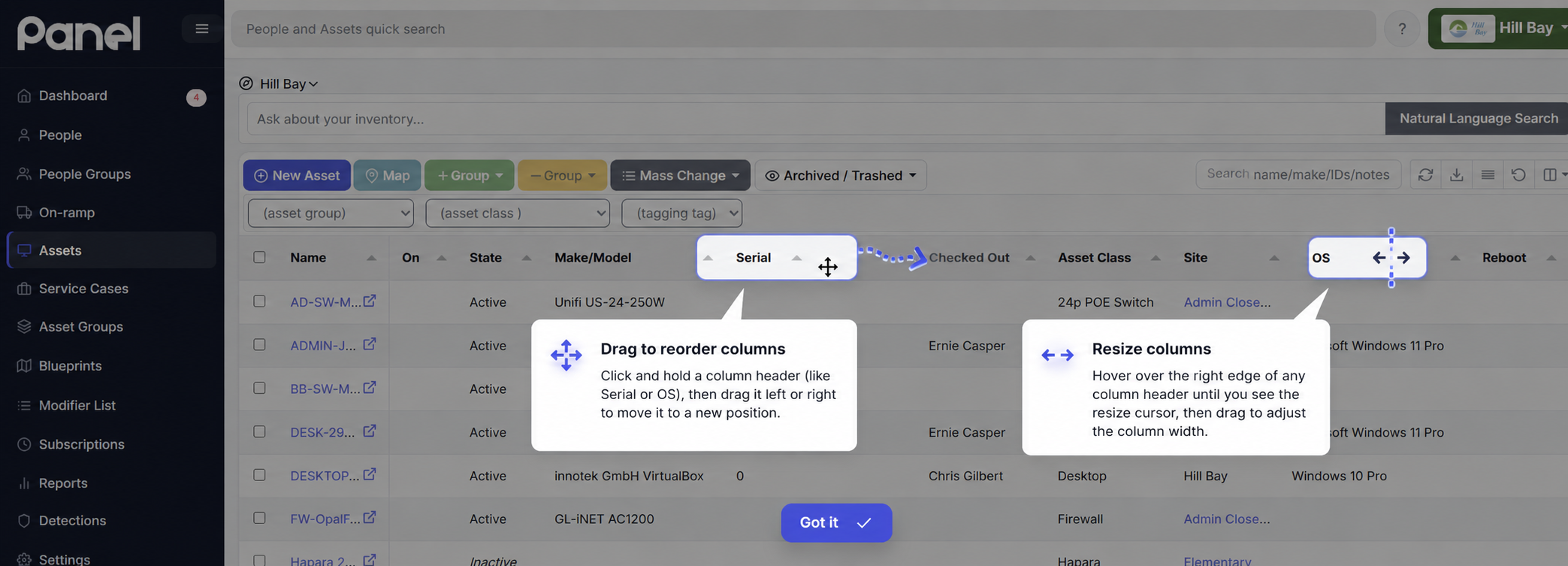
Resize columns - and grow the table
Grab the edge of any column header and drag to make it wider or narrower. Need to read long device names or notes in full? Widen that column. Don't care about a column but want to keep it visible? Shrink it down.
When you widen columns past the edge of the screen, the table simply grows and you can scroll sideways to see it all - no more cramped, squished text fighting for space.
Drag and drop to reorder columns
Want Serial right next to Name? Make/Model up front? Just drag a column header and drop it where you want it. Arrange the table so the columns you care about most are the first thing you see.
The Name column (and the selection checkboxes) stay pinned to the left as you scroll sideways, so you never lose track of which device a row belongs to.
A compact view for seeing more at once
Click Density to switch to a tighter, compact layout that fits more rows on screen at a time - perfect for scanning a big fleet. Prefer a roomier look? Toggle it right back. The header also stays put at the top as you scroll, so you always know what you're looking at.
Set your rows per page
You can also choose how many rows show per page - from 10 up to 1,000. Like to see a big chunk of your fleet at once? Bump it up. Want quicker, snappier pages? Keep it small. Whatever you pick is saved too, so the table opens at your preferred size every time.
It remembers your layout
Here's the best part: everything sticks. Column widths, column order, which columns are showing, your density choice, and your rows-per-page setting are all saved to your account - not your computer. Set things up once and your layout follows you to every device and browser you sign in from. Changed your mind? A Reset Columns button puts everything back to the defaults instantly.
The tools you already use are still here
We kept the essentials right where you expect them:
- Show or hide columns - pick exactly which columns appear from the Columns menu. There are plenty of optional columns (IP addresses, dates, OS, antivirus status, and more) ready whenever you need them.
- Export your results - the Export button downloads your current view to a CSV, respecting the filters and search you have active, so you get exactly the list you're looking at.
- Search and refresh - a search box and a one-click refresh sit right alongside the table controls.
Try it out
Head to your Assets list and start dragging. Make it wide, make it tight, put your favorite columns up front - and it'll be waiting just like that next time you log in. If you have ideas to make it even better, we'd love to hear them.
Questions or feedback? Reply to this post or open a support case from any page in K12 Panel.