---
title: "Catch malware across your fleet: Microsoft Defender threat monitoring"
description: K12 Panel now monitors Microsoft Defender across your entire Windows fleet, bringing every active malware threat into one live view. See how to turn it on.
image: https://k12panel.com/hubfs/feature-release%20blog%20post.png
---
[Skip to main content](https://k12panel.com/news-blog/catch-malware-across-your-fleet-microsoft-defender-threat-monitoring#main)
[.svg) .svg) .svg) .svg)](https://k12panel.com)
- Show submenu for What is Panel? What is Panel?
- [Product Overview](https://k12panel.com/product-overview)
- [Key Features](https://k12panel.com/key-features)
- [Preconfigured Packages](https://k12panel.com/preconfigured-packages)
- [Handout for Superintendents and Clerks](https://k12panel.com/hubfs/Handouts/K12Panel_Superintendent_Handout.pdf)
- [Handout for Tech Directors](https://k12panel.com/hubfs/Handouts/K12Panel_TechDirector_Handout.pdf)
- [Handout for MSPs](https://k12panel.com/hubfs/Handouts/K12Panel_MSP_Handout.pdf)
- Show submenu for Learn Learn
- [Training Center](https://k12panel.com/training)
- [Online Help](https://k12panel.com/kb)
- [Pricing](https://k12panel.com/pricing)
- Show submenu for Resources Resources
- [News Blog](https://k12panel.com/news-blog)
- [Online Help](https://k12panel.com/kb)
- [About Us](https://k12panel.com/about-us)
- [System Status](https://k12panel.com/status)
- [Handout for Superintendents and Clerks](https://k12panel.com/hubfs/Handouts/K12Panel_Superintendent_Handout.pdf)
- [Handout for Tech Directors](https://k12panel.com/hubfs/Handouts/K12Panel_TechDirector_Handout.pdf)
- [Handout for MSPs](https://k12panel.com/hubfs/Handouts/K12Panel_MSP_Handout.pdf)
- [Security Information](https://k12panel.com/security)
- [Privacy Policy and Terms of Service](https://k12panel.com/tos)
- [Contact Us](https://k12panel.com/contact)
- Show submenu for For MSPs For MSPs
- [I'm an MSP - why should I use K12Panel?](https://k12panel.com/msp)
- [MSP Handout](https://k12panel.com/hubfs/Handouts/K12Panel_MSP_Handout.pdf)
- [Free Trial](https://k12panel.com/trial)
Open main navigation
Close main navigation
- Show submenu for What is Panel? What is Panel?
- What is Panel?
- [Product Overview](https://k12panel.com/product-overview)
- [Key Features](https://k12panel.com/key-features)
- [Preconfigured Packages](https://k12panel.com/preconfigured-packages)
- [Handout for Superintendents and Clerks](https://k12panel.com/hubfs/Handouts/K12Panel_Superintendent_Handout.pdf)
- [Handout for Tech Directors](https://k12panel.com/hubfs/Handouts/K12Panel_TechDirector_Handout.pdf)
- [Handout for MSPs](https://k12panel.com/hubfs/Handouts/K12Panel_MSP_Handout.pdf)
- Show submenu for Learn Learn
- Learn
- [Training Center](https://k12panel.com/training)
- [Online Help](https://k12panel.com/kb)
- [Pricing](https://k12panel.com/pricing)
- Show submenu for Resources Resources
- Resources
- [News Blog](https://k12panel.com/news-blog)
- [Online Help](https://k12panel.com/kb)
- [About Us](https://k12panel.com/about-us)
- [System Status](https://k12panel.com/status)
- [Handout for Superintendents and Clerks](https://k12panel.com/hubfs/Handouts/K12Panel_Superintendent_Handout.pdf)
- [Handout for Tech Directors](https://k12panel.com/hubfs/Handouts/K12Panel_TechDirector_Handout.pdf)
- [Handout for MSPs](https://k12panel.com/hubfs/Handouts/K12Panel_MSP_Handout.pdf)
- [Security Information](https://k12panel.com/security)
- [Privacy Policy and Terms of Service](https://k12panel.com/tos)
- [Contact Us](https://k12panel.com/contact)
- Show submenu for For MSPs For MSPs
- For MSPs
- [I'm an MSP - why should I use K12Panel?](https://k12panel.com/msp)
- [MSP Handout](https://k12panel.com/hubfs/Handouts/K12Panel_MSP_Handout.pdf)
- [Free Trial](https://k12panel.com/trial)
- [Login](http://my.k12panel.com)
[Login](http://my.k12panel.com)
# Catch malware across your fleet: Microsoft Defender threat monitoring
by [Admin](https://k12panel.com/news-blog/author/admin)
Jun 20, 2026, 1:04:44 PM
Every Windows machine in your fleet already runs Microsoft Defender. The problem has never been detection; it is **visibility**. Defender's findings live on each machine, scattered across hundreds of devices, with no single place to see what's active right now.
Today that changes. **K12 Panel now monitors Microsoft Defender across your entire Windows fleet** and brings every threat into one place, in near real time. This is one of the biggest additions to Panel this year.
## What's new
The agent you're already running watches Defender's own threat log and reports detections up to K12 Panel as they happen. Here's what that gets you.
### A fleet-wide Detections view
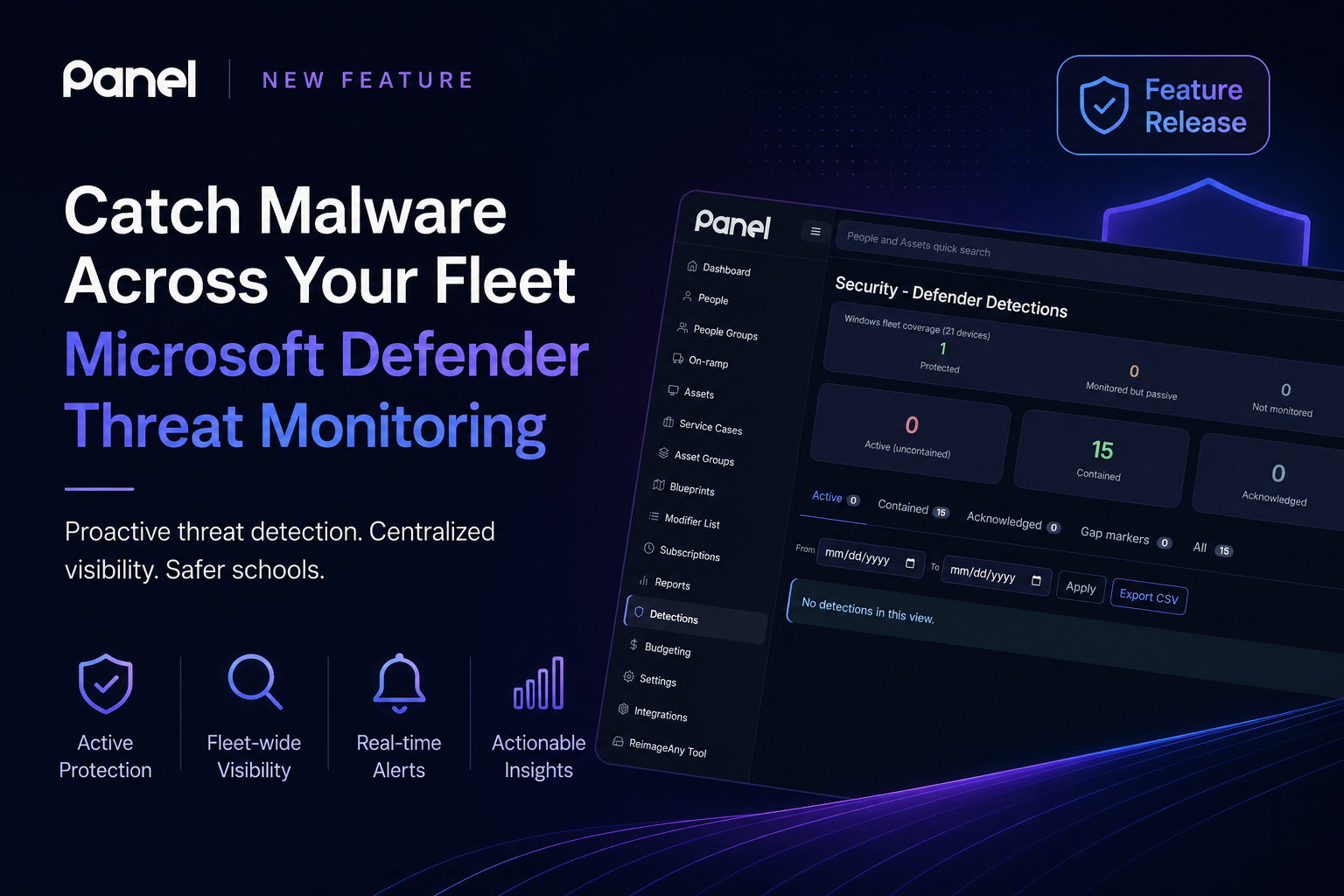
Open **Detections** from the left menu to see threats across every managed Windows device in one list — no more logging into machines one at a time. At the top, a **fleet coverage** summary tells you how protected you actually are: how many devices are **Protected** (monitored, Defender active), **Monitored but passive** (a blind spot — more on that below), **Not monitored**, or **Awaiting inventory**.
Below that: quick counts for **Active (uncontained)**, **Contained**, and **Acknowledged** threats, filter tabs to focus, date-range filtering, and **Export CSV** for audits. Every row links back to the device it came from and shows when that device was last seen.
### A live "active threats" counter — and a new Threats column
Not every detection needs you. What matters is whether Defender actually **contained** the threat:
- **Contained** — quarantined, removed, cleaned, or blocked. Handled.
- **Active (uncontained)** — detected but *not* neutralized: Defender allowed it, or cleanup failed. **These need a human.**
K12 Panel surfaces the active ones everywhere you're already looking:
- A red **counter** next to **Detections** in the left menu shows how many active threats exist across your fleet — like the On-ramp counter, but for malware.
- **New:** a **Threats** column on the **Assets** list shows the active-threat count per device as a red badge, so you can sort your whole fleet by "who's on fire right now." (Turn it on from the **Columns** dropdown — it sits right after Real-time AV.)
- The same count appears as a badge on each device's **Defender** tab, with a banner listing the active threats up top.
### A per-device Defender tab
Open any Windows asset and you'll find a **Defender** tab showing that machine's monitoring status, its full antivirus status, and every threat recorded on it — name, severity, category, the action Defender took, and the file path. When Defender finds a threat and then acts on it, Panel keeps everything on **one row** and updates it to the latest outcome, so you see one clear entry per threat instead of a stream of partial events.
### Know what's *actually* protecting each machine
Here's the trap this feature was built to catch: when a third-party antivirus is installed, **Microsoft Defender often drops into a "passive" mode and stops raising detections.** Monitoring looks "on," but Defender is silent — a false sense of security.
K12 Panel reads which antivirus is *actually* active on each device and flags a **monitoring/passive mismatch** when monitoring is on but Defender has stepped back. Two optional **Assets** columns — **Real-time AV** and **AV Definitions** — let you see and sort this across the whole fleet, so you can spot machines with no real-time protection or out-of-date signatures at a glance.
### Find threats with AI Search — in one org or across all of them
The new fields work in AI Search out of the box, on the **Assets** screen and in **Cross Org Search**. Try:
- *"devices with active threats"*
- *"machines running Defender as real-time"*
- *"computers where Defender is passive"*
- *"assets with no real-time antivirus"*
- *"Windows devices where Defender monitoring is disabled"*
If you manage multiple organizations, **Cross Org Search now understands all of these too** — *"devices with active threats except at Sunnydale"* checks every org you administer in a single query.
### Alerts that reach you, and an honest way to clear them
You get an **email** the moment an active (uncontained) threat appears — auto-contained detections don't email, so you're not buried in noise. Each active threat also raises a **dashboard alert** linking straight to the device, which clears automatically once the threat is contained. Administrators are subscribed by default; tune it any time under **Profile → Notifications**.
And when an active threat is expected — a known tool, a false positive, or a machine you've already reimaged — a manager can **Acknowledge** it with a reason and note. That clears it from the active counter **without pretending it was cleaned**: the record stays visible and auditable, and it's reversible. Honest by design.
## It's opt-in: Here's how to turn it on
Because schools run a mix of antivirus products, **Defender monitoring is off until you enable it.** Flipping it on takes about ten seconds:
1. Go to [**Settings**](https://my.k12panel.com/settings/) (the gear in the left menu).
2. Find **Defender Monitoring (default)** and switch it **ON**.
That sets the default for every Windows device in your organization. Connected devices pick it up within moments; the rest update the next time they check in. Need an exception — say, a machine that runs a third-party AV? Open that device's **Defender** tab and set its override to **Force OFF**. Per-device always wins over the org default.
> Until you turn this on in [Settings](https://my.k12panel.com/settings/), the Detections view, the Threats column, and the alerts above will stay empty. **This is the one step that unlocks everything in this post.**
## A few things worth knowing
- **It's read-only and safe.** K12 Panel only reads and reports what Defender already detects. It doesn't change how Defender protects the machine and never takes remediation actions itself.
- **It starts from "on."** Enabling monitoring captures threats from that moment forward — it doesn't backfill old history.
- **Defender on Windows only.** Threats from third-party antivirus products aren't covered (but Panel still tells you which AV is active).
- **Detections are retained for 180 days**, then aged out automatically.
For the full walkthrough — coverage states, gap markers, the acknowledge workflow, and who-can-do-what by role — see [*Knowledge Base → Microsoft Defender Monitoring*](https://k12panel.com/kb/menu-functions/detections).
---
*Questions or feedback? Reply to this post or open a support case from any page in K12 Panel.*
[.svg)](https://k12panel.com)
##### k12panel.com
©2026 K12Panel.com. All rights reserved. | [Privacy Policy](https://my.k12panel.com/privacy-policy/) | [Terms of Service](https://my.k12panel.com/terms/)
-
-
- [mailto:info@k12panel.com](mailto:info@k12panel.com)
```json
{
"@context" : "https://schema.org",
"@type" : "BlogPosting",
"author" : {
"@type" : "Person",
"name" : "Admin",
"url" : "https://k12panel.com/news-blog/author/admin"
},
"dateModified" : "2026-06-27T21:53:28.180Z",
"datePublished" : "2026-06-20T17:04:44.000Z",
"headline" : "Catch malware across your fleet: Microsoft Defender threat monitoring",
"image" : [ "https://k12panel.com/hubfs/feature-release%20blog%20post.png" ],
"mainEntityOfPage" : {
"@id" : "https://k12panel.com/news-blog/catch-malware-across-your-fleet-microsoft-defender-threat-monitoring",
"@type" : "WebPage"
},
"publisher" : {
"@type" : "Organization",
"logo" : {
"@type" : "ImageObject",
"url" : "https://k12panel.com/hubfs/test-full-word-logo.png"
},
"name" : "K12Panel.com"
}
}
```